
Gravity Forms has been our go-to form creation and management solution since 2016, when we purchased our first pro license for the plugin. In the past decade, we’ve used Gravity Forms on every custom WordPress site we’ve built.

Why CleverOgre Loves Gravity Forms
A large part of the reason we use Gravity Forms is that the plugin keeps getting better. We’ve enjoyed the frequent and meaningful additions to its core functionality, utilized an impressive portion of the plugin’s growing library of Add-ons and Perks, and seen our workflows continue to improve with updates to the form creation, editing, and management experience.
This year, Gravity Forms plans to release the next big update: version 4.0. While we eagerly anticipate getting our hands on this next evolution, it understandably brings with it the end of support for Legacy Markup.
What is Gravity Forms Legacy Markup?
When Gravity Forms released version 2.5 in 2021, it marked a major upgrade to the core functionality. To ensure the millions of forms created with the older versions still worked properly, Gravity Forms provided a built-in support system, named Legacy Markup.
Five years later, Legacy Markup features are now slated for deprecation with the upcoming release of version 4.0. While we don’t have an official release date yet, we anticipate it will happen sometime between July and September of 2026.
What Will Happen to My Forms?
For most forms still using Gravity Forms Legacy Markup, when version 4.0 is released, your forms will likely “break.” The forms’ styling and interfaces may experience errors, potentially making it impossible for users to fill out any information or submit the form.
Example Form With Legacy Markup
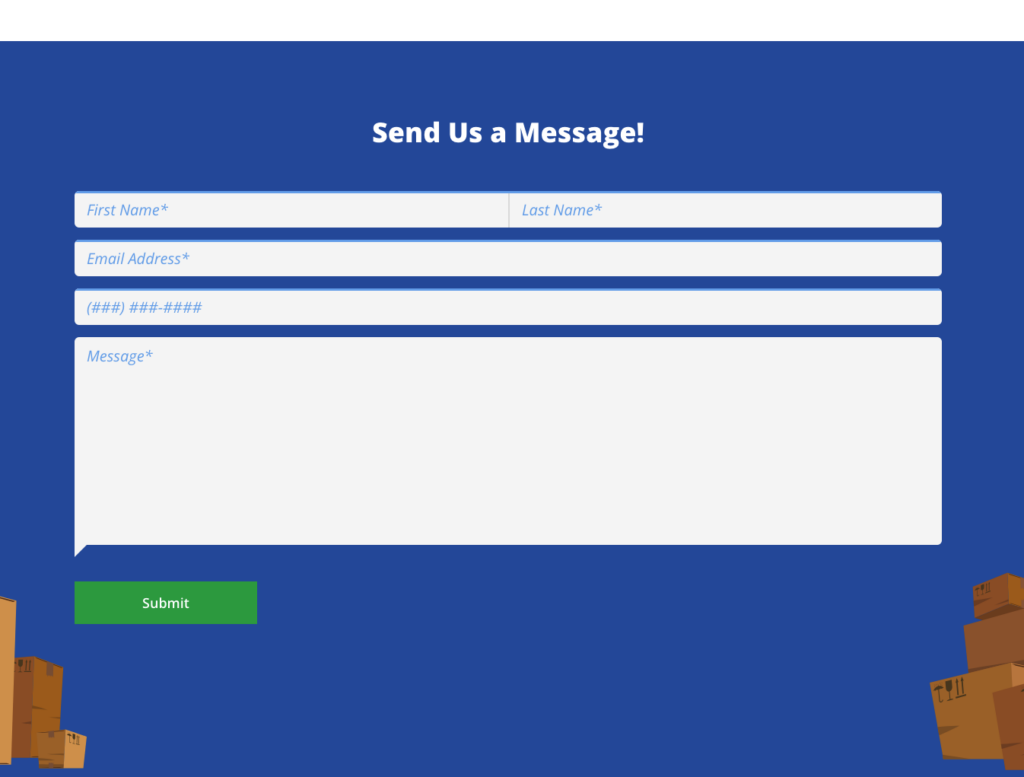
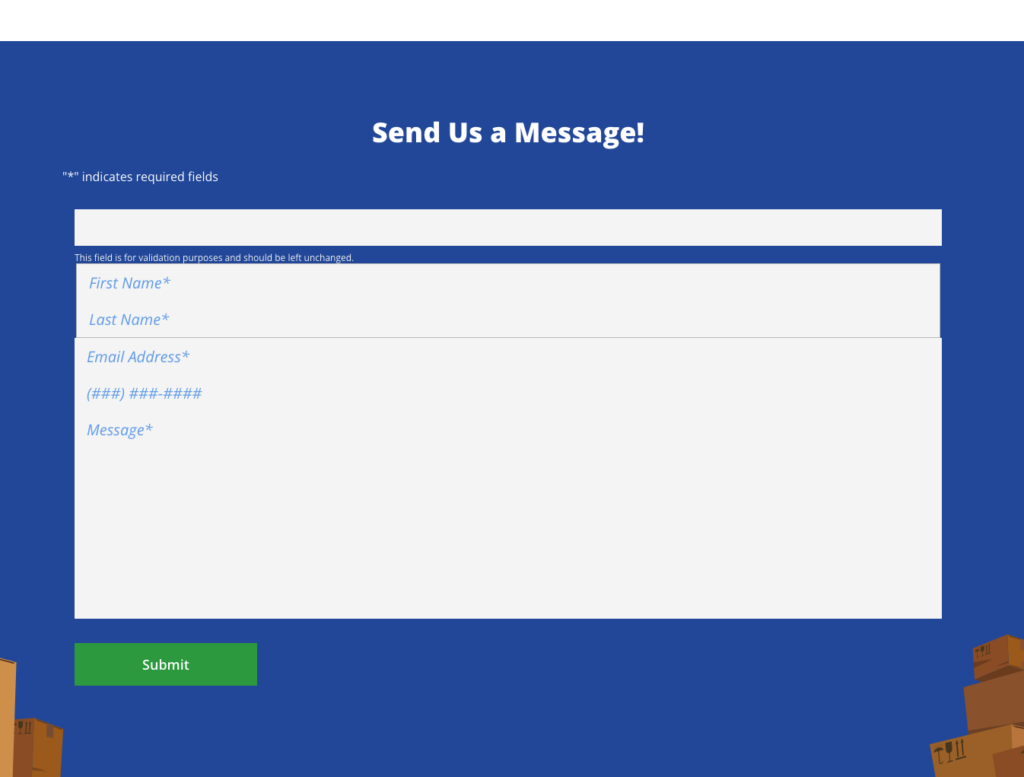
Here’s a good example of how removing Legacy Markup affects an older form built with pre-version 2.5 Gravity Forms. The first image is how the form looks with Legacy Markup enabled — all good! With it turned off, the styling and functionality are broken, leaving the form hard to read and impossible to fill out.
How Do I Know if my Gravity Forms are Using Legacy Markup?
An easy way to check if your Gravity Forms are using Legacy Markup is to look for the Enable Legacy Markup toggle in the individual form settings for each form on your website. If it’s not there, you should be all set! If it is, turn it off, flush your browser’s cache, and look at your forms to see how they are affected. Turn Legacy Markup back on, and fill out our form to join our special Gravity Forms Update Queue. Remember: first-come, first-served, and requests to fix Legacy Markup errors after Gravity Forms 4.0 is released will be quoted at our full hourly rate.
Step-by-Step Instructions
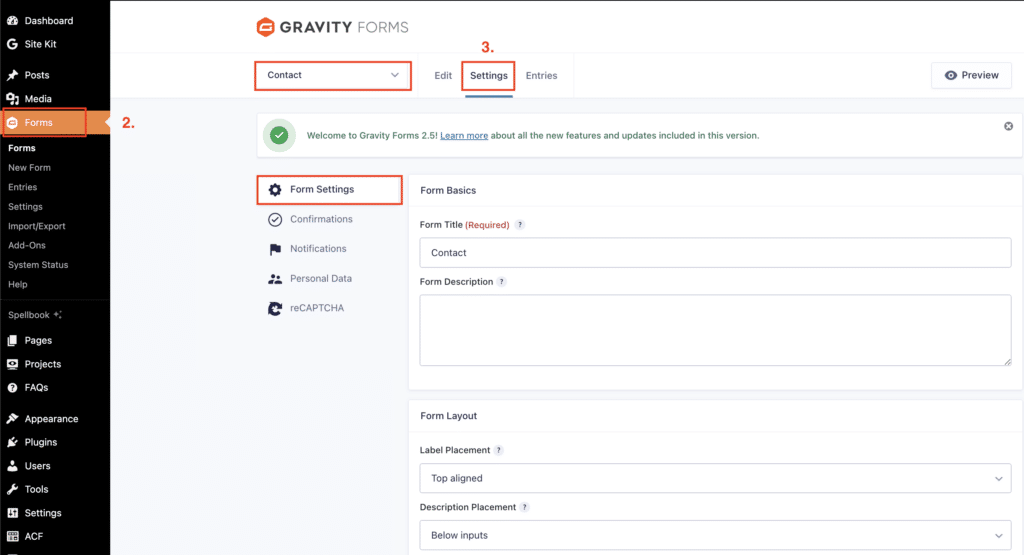
- Log in to your WordPress website as an administrator.
- Click the Forms link on the left side of your screen.
- With your first form selected in the dropdown, click on Settings.
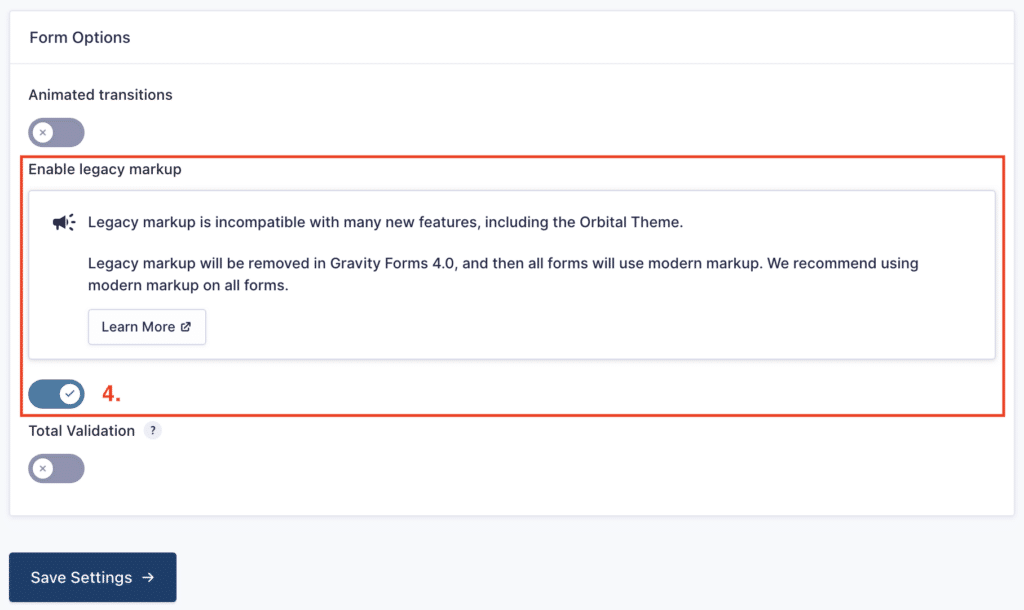
- Look for the Enable Gravity Forms toggle set to on (blue with checkmark in this example)
- Switch the toggle to off, (gray with X) clear your cache, and look at your live form on your website to check for errors. Test the form by completing all fields and submitting the form if you are able.
- Go back to your form settings, turn Enable Legacy Markup back on, and repeat these steps for each form on your website
- Contact us!
Contact CleverOgre
Fill out this form, and we’ll add you to our Gravity Forms Update Queue. If we have any questions, need more information, or expect the time involved to update your forms to exceed two hours, we’ll let you know ASAP.
*Pricing is for existing CleverOgre website clients with a current Managed Hosting plan, for up to three simple forms built with Gravity Forms version 2.5 or earlier. Defining “simple” is at the sole discretion of CleverOgre, and we reserve the right to quote a higher price for work that exceeds two hours.